Magic Eraser
Remove unwanted objects from any photo in seconds. Paint over a photobomber, a power line, a sign or a stain, press Erase, and the AI fills the gap with what should be behind it. Free, with no sign-up and no watermark, and your photo never leaves your device.
What you can remove
Clean up the parts of a photo you don't want
People and photobombers
Remove strangers from travel photos and walk-ons from your best shots.
Wires and power lines
Clear cables and poles out of skies, streets and landscapes.
Clutter and trash
Tidy up rooms, tables and product shots without reshooting.
Spots and blemishes
Erase dust, scratches, stains and small skin blemishes.
Signs and text
Take out signs, stickers, date stamps and captions.
Small logos
Remove logos from your own photos. For watermarks across a whole image, use the watermark remover.
Magic Eraser
Paint · Erase · Save
See it in action
The tool opens with this sample, so you can try it before using your own photo. The boat, buoy and power lines are already painted; one press of Erase removes them. Below that, a logo on a brick wall is replaced with Patch from the photo, which copies real bricks from elsewhere in the picture.
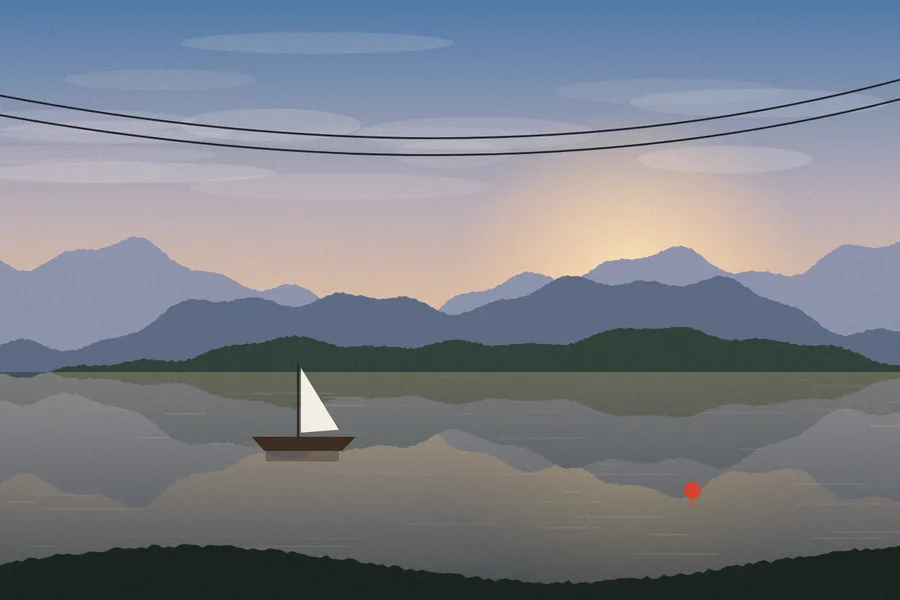
Before
A boat, a buoy and power lines spoil the view.
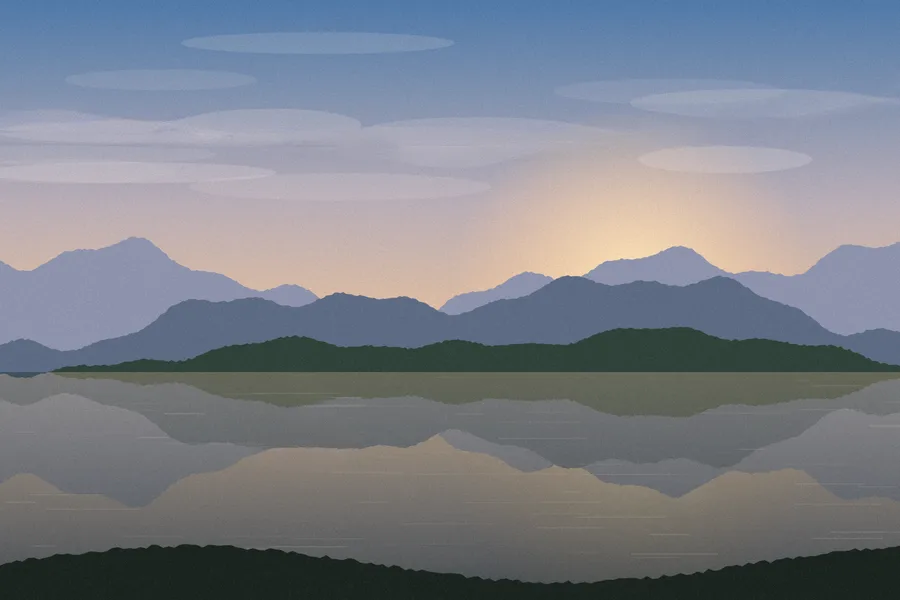
After AI fill
Sky, mountains and reflections carry on as if nothing was there.
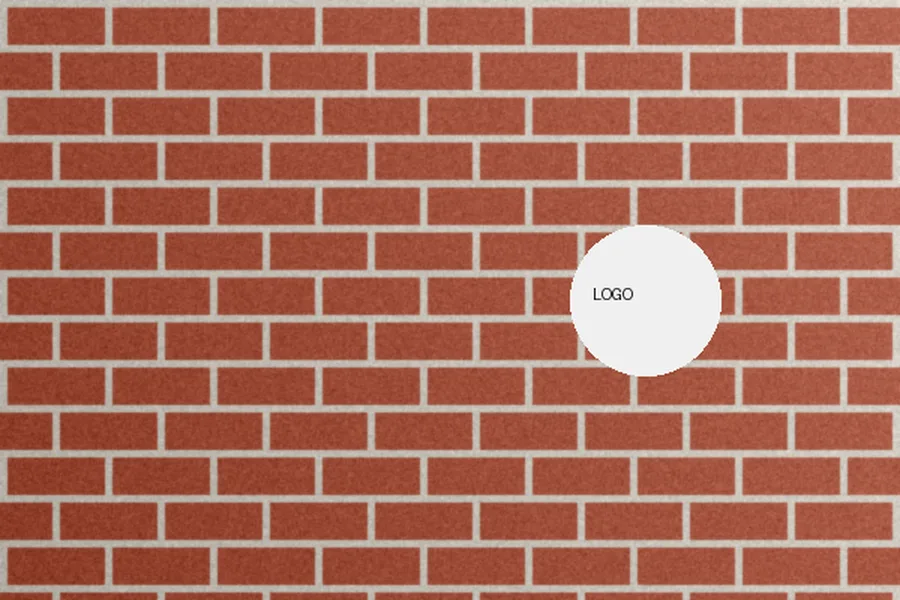
Before
A round sign covers part of a brick wall.
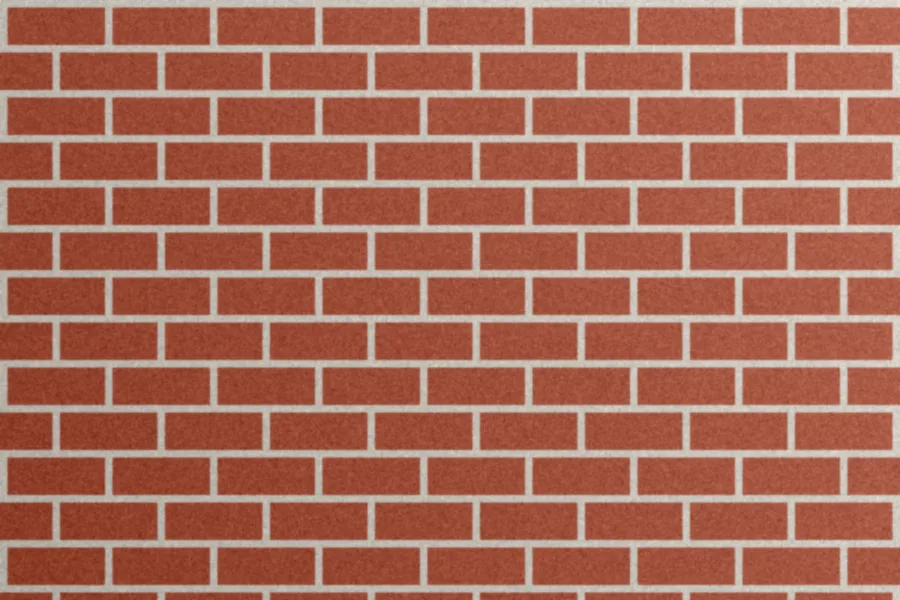
After Patch from the photo
Bricks and mortar lines continue straight through.
How to remove objects from a photo
Open your photo
Click Open photo, drop a picture on the tool or paste one. JPG, PNG and WebP all work.
Paint over what you want gone
Brush over the object with a little margin. Include its shadow and reflection. Use Unpaint to fix mistakes.
Press Erase
The AI fills the painted area with what belongs behind it, matching the light, colour and texture around it.
Check and save
Compare with the original, touch up anything left behind, and save a full-resolution PNG.
Which erase method should you use?
AI fill is selected for you and handles most photos. The other methods copy or blend real pixels from your photo, which can look sharper on simple, repeating surfaces.
| Method | Best for | What to watch for |
|---|---|---|
| AI fill | Most objects and people, on any background | Soft or invented detail in very large areas |
| Patch from the photo | Repeating surfaces such as walls, grass, sand, fabric or sky | A visible repeat if the copied area is distinctive |
| Texture rebuild | Small spots on patterned or textured backgrounds | Repeated patterns or mismatched grain |
| Smooth fill | Dust and specks on plain backgrounds | Blur when used across detailed areas |
Tips for a clean result
Paint a little past the edges
Cover the whole object plus a thin margin. Any outline you miss can come back as a faint ghost.
Include shadows and reflections
An object's shadow on the ground or reflection in water stays behind unless you paint it too.
Work in smaller passes
For big objects or crowds, erase one part at a time. Each pass gives the AI more real surroundings to work from.
Fix leftovers with a second pass
If a smudge remains, paint over just that spot and press Erase again, or try Patch from the photo.
Bring back fine grain
Erased spots can look smoother than the rest of the photo. Restore detail adds back matching grain and texture.
Keep the original
Use Compare with original to check your edit, and Undo or Reset whenever a result is not right.
Your photo stays on your device
Most online object removers upload your picture to their servers, then charge credits or shrink the free download. Aleynray Ai Magic Eraser works differently: the AI model loads into your browser once and does all the work on your own computer or phone.
That means your personal photos stay private, and every result is free at full resolution.
- Free, with no sign-up or credits
- No watermark on downloads
- Full-resolution PNG
- Photos never leave your device
- Works on desktop and mobile
Frequently asked questions
Is the magic eraser free?
Yes. There is no sign-up, no credits and no watermark on your download. The AI runs in your own browser, so there is no per-photo charge.
Are my photos uploaded?
No. Your photo is opened and edited inside your browser. The AI model is downloaded to your browser the first time you use it and then runs on your own device, so nobody else sees your photo.
How long does it take?
The AI model downloads once (about 110 MB), which can take a minute on a slower connection. After that, erasing takes roughly 20–30 seconds for each 512-pixel area you paint on a typical laptop. A small object is quick; long wires across a whole photo take longer. Phones are slower than computers.
Can it remove people from photos?
Yes. Paint over the person, including their shadow and any reflection, and press Erase. It works best when the person is small to medium in the frame and the background behind them is fairly simple, such as sky, sand, grass, water or a wall.
Can it remove large objects?
It can, but the larger the area, the more the AI has to invent. For big objects, erase in a few smaller passes, starting from the edges, and use Undo if a pass looks wrong.
Will I lose image quality?
No. Only the area you paint is changed. When you save, every untouched pixel is kept at your photo's original resolution. Very large photos are edited at 3200 pixels on the long side.
Does it work on phones?
Yes, in modern mobile browsers. Paint with your finger and use a larger brush. The first download and the AI step take longer on phones, and very old phones may run out of memory on large photos.
How is it different from the watermark remover?
Both use the same AI. The watermark remover adds tools that find text and logos automatically, while the magic eraser keeps things simple: you paint what you want gone and press Erase.
Erase responsibly
Use Aleynray Ai Magic Eraser on photos you took or have permission to edit, and don't use it to remove watermarks or credits from other people's work.