AI Watermark Remover
Remove unwanted watermarks, text overlays and small logos with precise selection tools and browser-based AI Fill. Upload an image, choose what to remove, and save your edited result.
Start here
Choose the right way to remove a watermark
Auto Clean is a quick start, not always the best choice. For written marks, try Find Text. For a specific letter or logo, try Pick Mark. Review the pink selection before removing anything.
Auto Clean
One-click detection and cleanup for straightforward overlays. Results can vary on detailed images.
Find Text
Looks for lettering. Useful for text watermarks, but may also select real words in your photo.
Pick Mark
Click directly on a watermark to guide selection. Best when a particular mark is easy to identify.
Tip: Pink means remove. Use Erase to fix accidental selections. For tricky images, Paint gives the most precise control.
ClearMark editing workspace
Upload · Select · Repair · Save
See it in action
Two everyday jobs: a see-through stock-photo watermark removed with Find Text and AI Fill, and a solid logo on a brick wall replaced with Patch from the photo, which copies real texture from elsewhere in the same image.

Before
A diagonal text watermark across the whole scene.

After Find Text + AI Fill
Lettering found automatically and redrawn from the scene around it.
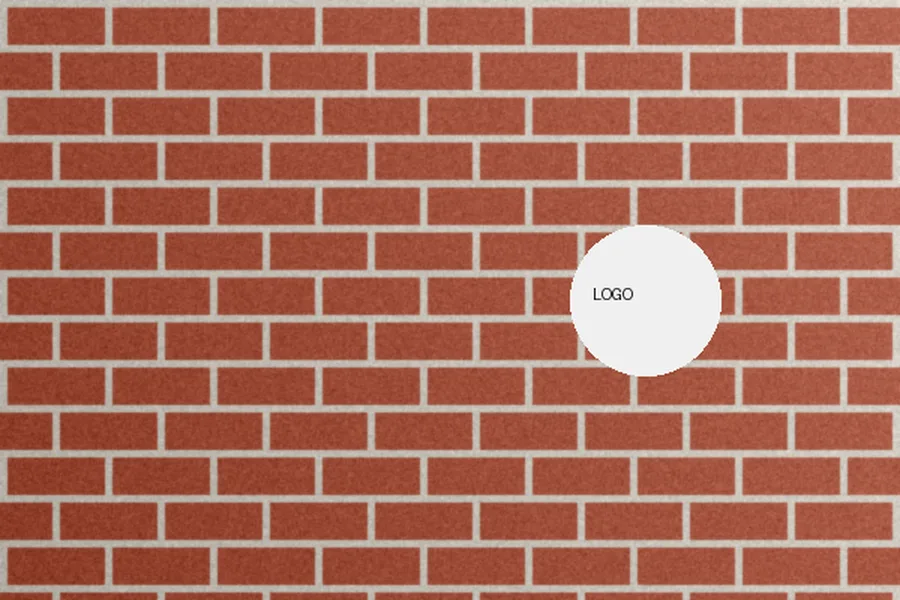
Before
A solid logo that hides the wall completely.
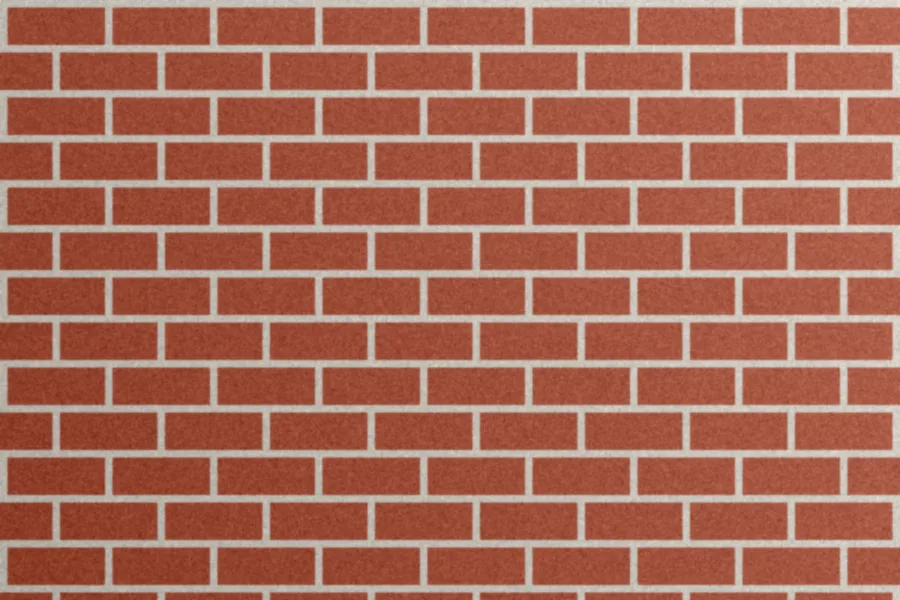
After Patch from the photo
Bricks and mortar lines continue straight through.
Image editing guide
Remove unwanted marks from images, with more control
Sometimes a watermark sits neatly in a corner. Other times it cuts across a photograph, a product, or an area filled with tiny details. ClearMark gives you several ways to work on images you own or have permission to edit, with a manual brush for difficult parts and an AI Fill option that runs on your own device.
There is no account to create and no image upload to a processing server. You open the image in your browser, mark the area you want to repair, compare the result, and save a PNG. The important part is choosing the right method for the background instead of expecting every mark to behave the same way.
Browser-based AI Fill
Reconstruct selected areas locally using the included inpainting model. Best suited to carefully selected marks with enough surrounding detail.
Automatic detection
Scan for likely overlay regions and review the pink selection before applying changes.
Manual editing
Paint precisely over a mark and erase accidental selections, with full undo.
Compare and save
Inspect a before-and-after view, undo an unsatisfactory edit, and export the resulting PNG.
Auto Clean vs Find Text vs Pick Mark: which should you use?
ClearMark offers several ways to locate an unwanted watermark. They do not all work equally well on every photograph. Auto Clean is convenient, but it is not necessarily more accurate than choosing the mark yourself. If the first result is disappointing, go back to the original and use a more targeted selection.
| Selection option | Best starting point | Before removing |
|---|---|---|
| Auto Clean | Clear, obvious overlays on relatively simple backgrounds, when speed matters | Inspect the output. Automatic cleanup can miss light text, select real details or soften complex textures. |
| Find Text | Words, repeated lettering and text-style overlays | Check the pink mask carefully. Product labels, signs and other legitimate writing may be detected too. |
| Pick Mark | A recognizable letter, logo or mark you can click directly | Click on the unwanted overlay, then review the highlighted pixels; nearby regions with similar tones can also be selected. |
| Paint | Small symbols, partial reflections and delicate details requiring manual control | Use a small brush. Keep the mask tight, then choose an appropriate repair method. |
A reliable workflow for difficult photos
- Open the original image. Keep a copy in case you want to compare different approaches.
- Find the mark. Try Find Text for writing or Pick Mark for a specific overlay; choose Paint if automation targets the wrong objects.
- Review the selection. Pink pixels are scheduled for removal. Erase mistaken selections and avoid covering legitimate product details.
- Choose how to repair it. AI Fill may help with complex surroundings, while Smooth Fill suits simple backgrounds. If AI Fill leaves a blurry spot, paint over it and use Patch from the photo to copy real detail from a matching area. Undo if edges blur or the result looks unnatural.
One important distinction: Find Text and Pick Mark select regions; AI Fill, Patch from the photo, Symmetry fill, Texture Rebuild, Smooth Fill and Unblend Overlay repair them. Detection and repair are different steps. If your selection is wrong, switching to a stronger removal method will not necessarily help.
How to use the free watermark remover
You can begin with automatic detection for straightforward marks, but a manual selection is often safer when the overlay crosses important parts of a photo.
Open the image
Choose a JPG, PNG or WebP that your browser can display. The image appears in the editing workspace.
Select the unwanted area
Try Detect Watermark or Find Text, or choose Paint to mark a specific region yourself. Pink indicates pixels scheduled for removal.
Check nearby details
Use Erase if the detector selects real objects, text or edges, so that only the unwanted mark stays pink.
Choose a removal method
AI Fill, Patch from the photo, Symmetry fill, Texture Rebuild, Unblend Overlay and Smooth Fill each work differently. Start with the method suited to the background and inspect the output.
Review before saving
Use Compare with original and Undo if necessary. Download your cleaned image as a PNG once you are satisfied.
Which removal method should you choose?
The tool includes different approaches because photographs vary so much. A mark over a white wall is easier to repair than one covering fine engraving, hair, watch hands or fabric texture.
| Method | When to try it | What to watch for |
|---|---|---|
| AI Fill | Detailed scenes where surrounding image context may help reconstruct the selection | Invented details, smudges or softened edges |
| Patch from the photo | A spot that matches another clean area of the same image, such as a wall, fabric, sky or a blurry patch left by AI Fill | A visible repeat if the copied area is too distinctive |
| Symmetry fill | Round objects photographed face-on, such as watch dials, wheels, plates and clocks | Hands, date windows and other non-symmetric parts |
| Unblend Overlay | Faint, semi-transparent writing or graphics over a photo | Dark or bright patches if opacity is estimated incorrectly |
| Texture Rebuild | Small patches over textured or patterned backgrounds | Repeated patterns or mismatched grain |
| Smooth Fill | Flat walls, skies and uncomplicated backgrounds | Blur when applied across detailed objects |
| Automatic | Quick first attempts on relatively simple marks | Incorrect detection on real photo details |
For difficult images, try one small region first rather than selecting everything. Undo a failed repair before trying a different method. Repeatedly processing an already distorted area often makes it worse.
When AI Fill leaves a blur: patch from the photo
AI Fill invents what might be under a mark, and on detailed texture that can look smudged. Patch from the photo takes a different approach: it searches the rest of your image for a clean area that matches the surroundings of the spot, copies that real detail across, and blends the lighting so no edge shows.
Paint over the bad spot, choose Patch from the photo and press Remove. If you would rather pick the source yourself, choose Copy from and click a clean area that looks like what belongs underneath.
For round objects photographed face-on, such as watch dials, wheels and clocks, Symmetry fill rebuilds the hidden part from the matching parts on the other side of the circle. It finds the center automatically, or you can set it with Set center.
Both methods copy pixels that already exist in your photo, so they keep real grain and sharpness. Neither needs an AI download.
Removing text and logos from product photographs
Product photography is difficult because small details matter. Jewelry, electronics, watches and textured fabrics contain reflections, shadows, narrow lines and high-contrast lettering. A removal tool may mistake real product markings for an unwanted overlay if both share similar brightness or shapes.
If an automatic selection covers the actual product, don't press Remove immediately. Clear the incorrect selection, switch to Paint, and mark only the added overlay. For small symbols, work in short passes and avoid masking genuine edges. A repair can look convincing at thumbnail size but reveal warped lines when inspected closely.
Erase is your safety net. If real product markings turn pink after detection, erase them before pressing Remove, so only the added overlay is repaired. For simple jobs you may not need it at all.
There is also an important distinction between reconstructing an appearance and recovering hidden information. An opaque symbol may permanently cover the original pixels. AI Fill can generate plausible replacement texture, but it cannot guarantee the exact original lettering, geometry or product details.
Why a watermark can leave a shadow or dark patch
Some overlays are partially transparent, which means you can still see the original photo through them. Unblending attempts to estimate the overlay's color and opacity and reverse that mixture. If the guessed values are wrong, the result can become darker, brighter or uneven.
Other marks include a glow, drop shadow or reflected copy. Removing the obvious text may not remove those surrounding effects. In that case, a second small selection may help, particularly on plain backgrounds. Avoid applying aggressive smoothing across edges or fine textures.
A common example is a mark that crosses a white background and a metallic object. The white area may clean up neatly with Smooth Fill, while the same method softens reflections and engraving on the metal. Treat those surfaces separately whenever possible.
Private editing in your browser
ClearMark's standard detection and reconstruction run on your device. The AI inpainting model is downloaded into the browser when needed, which can take time on the first use. Processing speed depends on image dimensions, browser support and the available memory or CPU on your computer or phone.
Images are not sent to an Aleynray Ai image-processing server as part of the standard local workflow. Like any website, the surrounding page may still load its ordinary resources. Review the image carefully before downloading it or sharing the result elsewhere.
- Free, with no account or credits
- Images stay on your device
- AI Fill runs in your browser
- Full-resolution PNG download
- Works on desktop and mobile
Frequently asked questions
Is ClearMark free to use?
Yes. There is no account to create, no credits and no daily limit, and nothing is added to your saved image. Detection and repair run in your own browser, so there is no per-image charge.
Does the watermark remover upload my photos?
No. The image is opened and edited inside your browser. The text-finding model (about 3 MB) and the AI Fill model (about 110 MB) are downloaded to your browser the first time you use them and then run on your own device.
Can it remove logos from complex product images?
Often, with care. Paint only the added logo, erase any real product markings that get selected, and repair in small passes. Patch from the photo works when a matching clean area exists, Symmetry fill suits round faces such as watch dials, and AI Fill handles the rest. An opaque logo hides the pixels under it, so any result is a reconstruction rather than the original.
Why does AI Fill blur or change part of the picture?
AI Fill creates new content from the surrounding image. On fine texture, or when the selection is large, it can look soft or invent details. Keep the selection tight, work on smaller areas, try Patch from the photo to copy real detail from elsewhere in the image, and use Restore detail to add back fine grain.
What is the difference between Paint and Erase?
Paint marks pixels to remove and shows them in pink. Erase takes pixels out of the pink selection, so they stay untouched. Use Erase whenever detection or Find Text selects real details, such as product lettering, before you press Remove.
Can I remove faint watermark reflections?
Often, yes. Select the faint mark and choose Unblend overlay, which reverses see-through marks while keeping the detail underneath. If a ghost remains, undo, raise Unblend strength and try again; if the area turns darker or lighter, lower it. A glow or drop shadow may need a second small selection.
Does this tool recover the exact original image?
No. A see-through mark can often be reversed closely because the original is still partly visible. An opaque mark completely hides the pixels underneath, so every method produces a plausible reconstruction, not the original.
Can I use it on mobile?
Yes, in modern mobile browsers. You can paint with your finger. AI Fill is slower on phones and needs more memory, and the model downloads the first time you use it, so a Wi-Fi connection helps.
Get a cleaner result without over-editing
The strongest results come from careful selections, the right removal method, and checking the image at full size. Start small, keep the original, and stop when the repair is good enough for your intended use. Use ClearMark only on images you own or are authorized to modify.
Need another image utility?
Explore Aleynray Ai's other browser-based tools for additional editing tasks.